
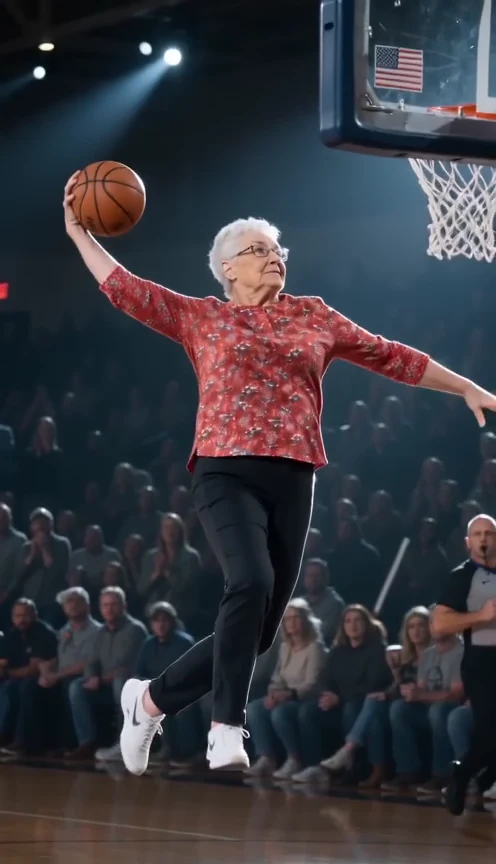
15-second full dunk videoUser-supplied basketball demo. AI-generated results will vary.
What is a dunk AI video?
A dunk AI video puts the person in your photo into a basketball sequence: the approach, the gather, a one-handed slam, and the landing. The AI uses your photo as a reference for the player and follows a preset basketball scene with fixed camera angles and movements.
Make your own highlight, surprise a teammate who has agreed to take part, or create a fun basketball birthday video for a friend. You do not need any footage of the person playing.
Watch the example on the generator page to see the dunk sequence before you begin. Then follow the three steps below.
How to make a dunk AI video in 3 steps
1. Pick a photo of your dunker
Choose a sharp photo with one person and a clearly visible face. A full-body image also gives the model a reference for the outfit, shoes and body proportions. Avoid a distant subject, covered eyes or a heavily blurred face.
Use your own photo or one you have permission to use. You do not need to hold a basketball or stand on a court: the photo background is replaced by the prepared scene.
2. Upload it and choose your format
Open the Dunk AI generator, sign in, and add your photo to the dunker slot. Upload a JPG, PNG or WebP file up to 10 MB. Both the width and height must be between 300 and 6,000 pixels.
Choose the aspect ratio that suits your post:
| Format | A useful choice for |
|---|---|
| Portrait 9:16 | A vertical phone video |
| Landscape 16:9 | A wide video or horizontal screen |
| Square 1:1 | A square post |
For a full video, select Standard 480p or HD 720p. The action and sound are prepared for you, so there is no prompt box to fill in and no need to upload music.
3. Try a free preview or generate the full video
If the free trial is available to your account, select Try free · 4 s opening. You will get a short preview of the opening. See the free preview details below for the limits.
For the complete action, check the displayed credit quote and select Generate full video. Follow its progress in My creations. When it is ready, play the result and download the MP4 with sound. Processing time varies. If you are still waiting, check the task status before submitting another request.
Can you make a dunk AI video for free?
Eligible new accounts can try one free 4-second opening preview at 480p when capacity is available. It is a way to try your photo in the scene before spending credits on a full video.
| Free opening preview | Full dunk video | |
|---|---|---|
| Duration | 4 seconds | 15 seconds |
| Action | The beginning of the reference sequence | The complete dunk sequence |
| Quality | 480p | Standard 480p or HD 720p |
| Cost | Free for eligible accounts when available | Credits |
The preview is the opening of the action, so it may stop before the dunk. Choose the full video if you want the approach, finish and landing in one clip.
Availability depends on account eligibility, network checks and daily capacity. If the free preview is unavailable, the generator will explain why.
How much does the full dunk AI video cost?
The full video is 15 seconds long at both resolutions. Both options use Seedance 2.0 Fast; the quality setting determines the credit cost.
| Quality | Credits per full video |
|---|---|
| Standard 480p | 100 |
| HD 720p | 200 |
Check your balance and the quote in the generator before submitting. The pricing page lists credit packs and subscriptions. Pick 480p if that resolution suits your post, or 720p if you want a higher-resolution export. Neither option guarantees an exact likeness or a perfect result on every attempt.
Photo tips for a more recognizable dunker
Keep the face large enough to see. A full-body shot is useful, but a person who occupies a tiny part of the image gives the model little facial detail. Choose a closer, sharper source rather than enlarging a tiny face.
Show the clothes you want in the clip. The model uses visible clothing and accessories as references. A clear outfit is easier to interpret than clothes hidden behind another person or a large object. Fine details can still change.
Use one obvious subject. Skip team photos and crowded backgrounds when possible. If you crop someone out of a group picture, check that their face remains sharp and that the crop does not include another person's face.
Review the whole movement. Watch the face during takeoff and landing, then check the hands, ball and rim. A convincing first frame does not mean every later frame will work. If the person looks wrong throughout, try a clearer source photo before generating another full clip.
Three ways to make a dunk video
The right approach depends on whether you want a new scene, an edit of existing footage, or a real basketball highlight.
| Method | What you need | What you make |
|---|---|---|
| Photo-to-video AI | One clear photo | A generated basketball scene featuring your dunker |
| A video editor or template | Basketball footage or the assets requested by a template | An edit using the footage, cuts and effects available to you |
| Film it on a court | A player, a hoop and a camera | A recording of a real attempt that you can edit yourself |
An editor can help you cut clips, add slow motion or place a caption. Check what any chosen template actually does before starting: replacing a photo in an edit does not necessarily generate a new dunk. If you want to start with a single photo, use the photo-to-video steps above.
Download, add a caption and share
Download the completed MP4 from My creations. The export includes sound. Play it once before posting so you can check both the movement and the audio.
You can import that file into your usual video editor to add a caption, trim the opening or adjust the volume. Keep captions away from the player's face and the rim. A short line such as “Me after one good pickup game” gives the clip context without covering the action.
If you replace the soundtrack, listen for overlapping audio and check the timing after your edits. Make clear that the dunk is AI-generated when you share it, and get permission before posting someone else's likeness.
Questions about making dunk AI videos
Can I make it on my phone?
Yes. Open the generator in your mobile browser, choose a photo from your device, and use My creations to find the result. You do not need to install a video editor to generate the clip.
Do I need a photo of myself playing basketball?
No. A clear photo of you is enough. The template provides the basketball scene and movement. A full-body photo helps show your proportions and outfit.
Why does my free preview end before the dunk?
It shows the beginning of the sequence, so the dunk may happen after the preview ends. The full video includes the complete action.
Can I write a prompt for a different dunk?
This generator uses a prepared sequence. The controls let you choose your photo, format and quality; they do not let you direct a different dunk or a new camera sequence.
What if the video is still processing?
Check its status in My creations and allow the current task to finish before retrying. Queue times vary. If a full-video task is confirmed as failed or canceled, its credits are returned. A failed free preview does not use up your free attempt.
Can I edit it after downloading?
Yes. Treat the MP4 as a normal video clip in your editor. Add text, make cuts or combine it with other clips, then watch the exported version before sharing.
See yourself above the rim
Start with a clear photo. Try a free 4-second preview if eligible, or use credits to generate the full 15-second dunk video.
Create your dunk video